
Slack Integration
Connect SLASH to Slack for real-time security notifications
Overview
The Slack integration allows you to receive real-time notifications about pentest progress, vulnerability discoveries, and status updates directly in your Slack channels. You can configure different pentests to send notifications to different channels, customize which events trigger notifications, and filter by severity level.
Step-by-Step Setup
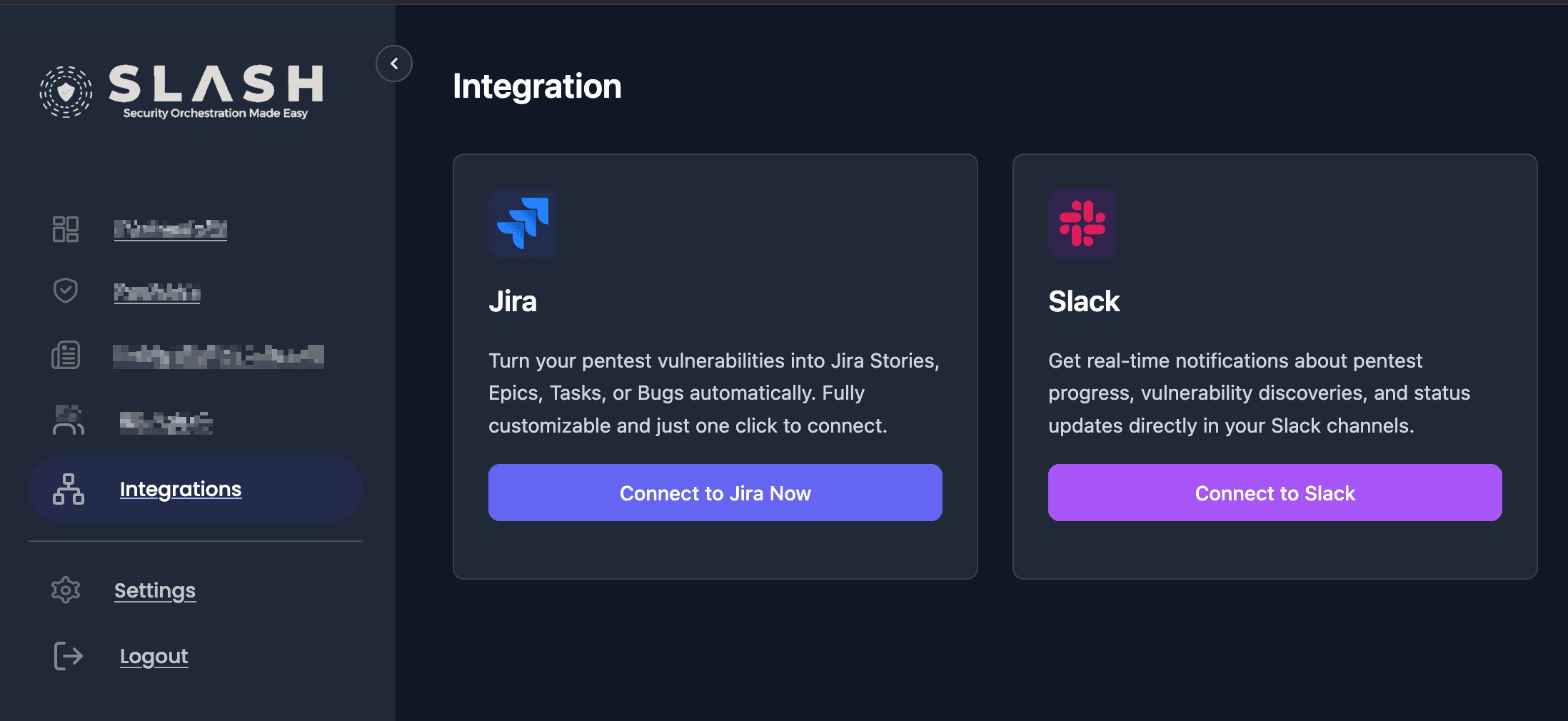
Navigate to Integrations
Log in to your SLASH account and click on 'Integrations' in the left sidebar navigation panel.
You'll see the Integrations page with available integration options including Slack, Jira, and ClickUp.
Loading screenshot...
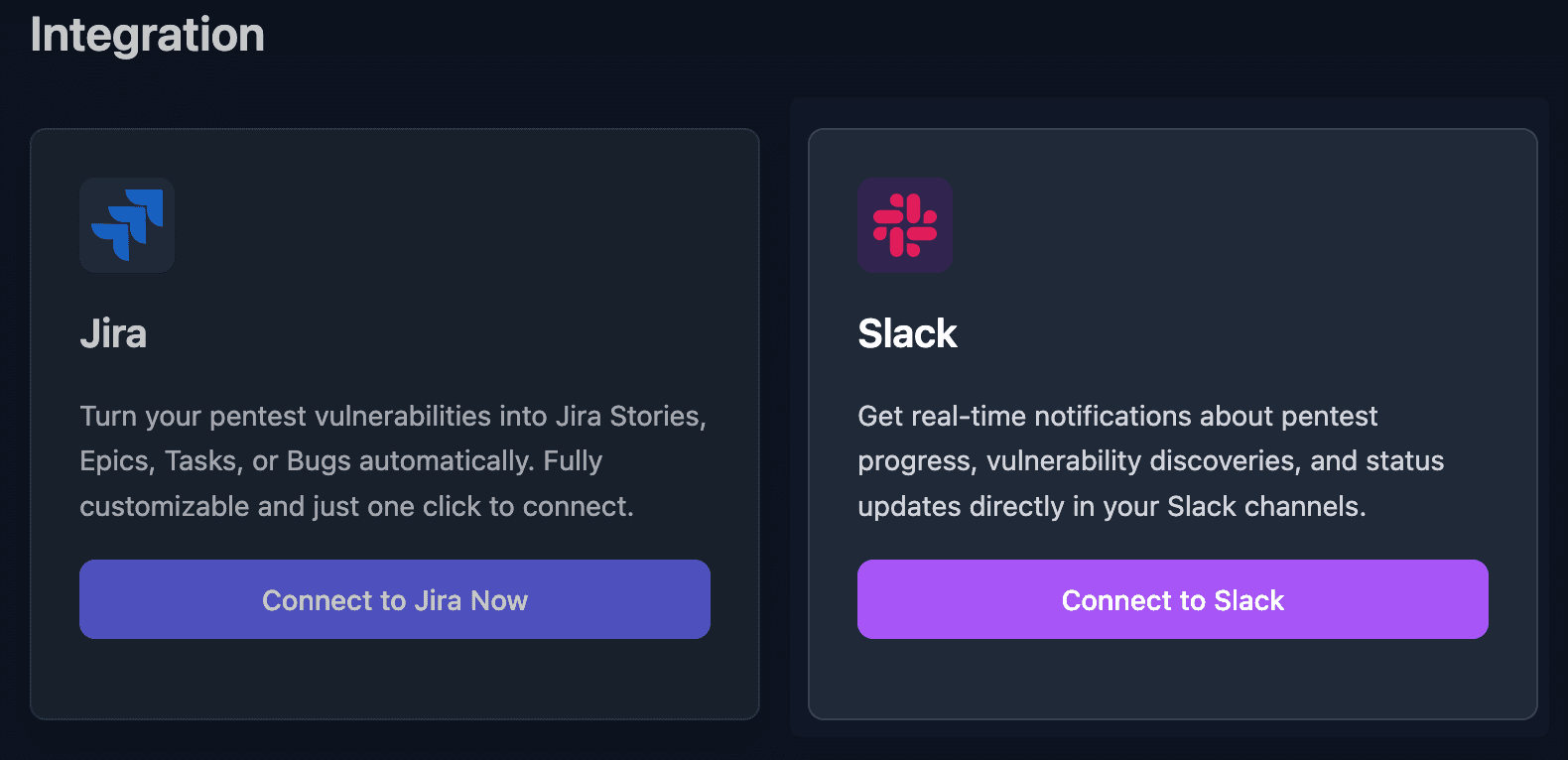
Connect to Slack
Click the 'Connect to Slack' button on the Slack integration card.
This will initiate the OAuth flow to connect your Slack workspace with SLASH.
Loading screenshot...
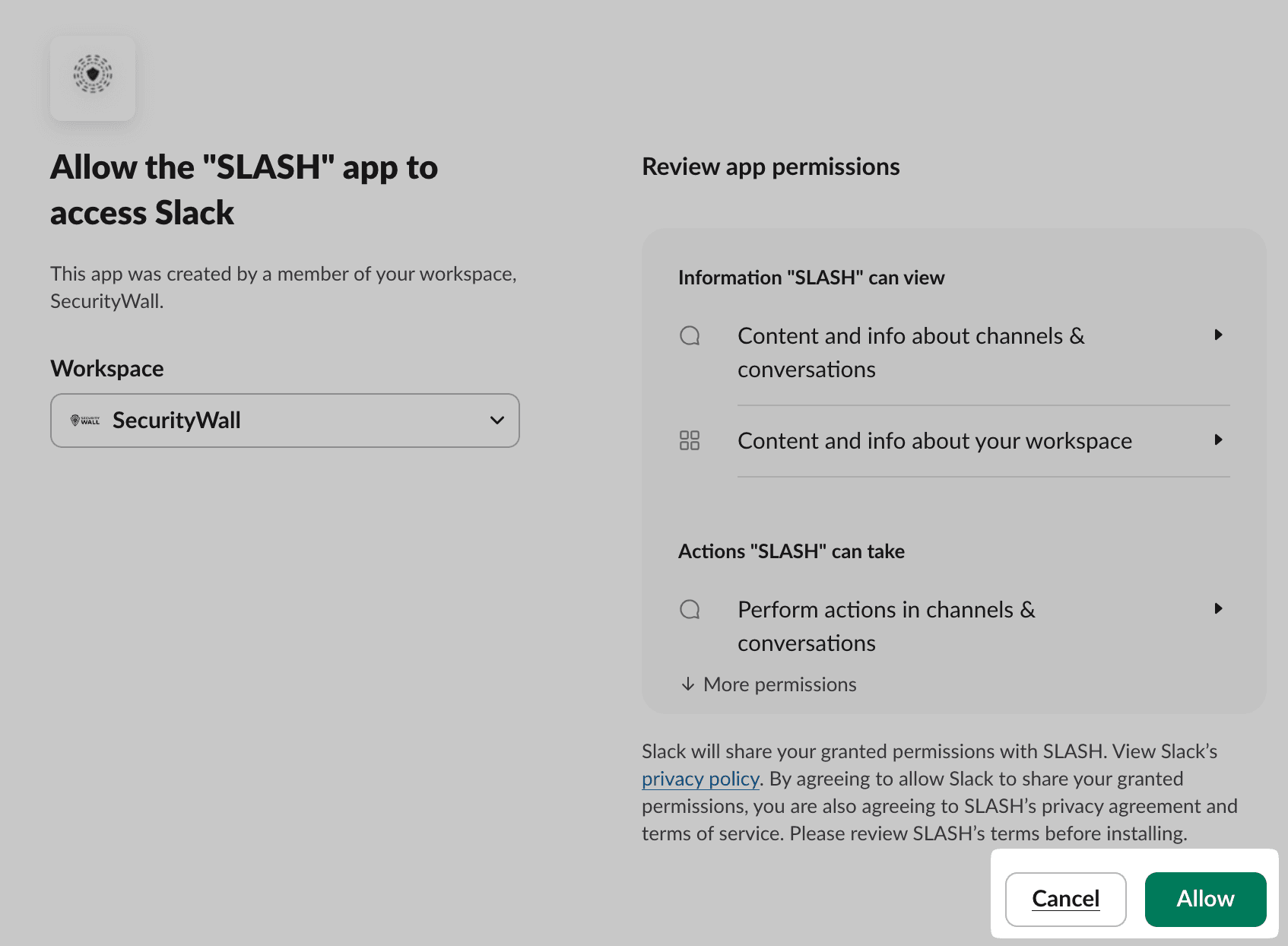
Authorize SLASH App
You'll be redirected to Slack's authorization page. Review the permissions and click 'Allow' to authorize the SLASH app.
The app requires permissions to view channel information and send messages to your selected channels.
Loading screenshot...
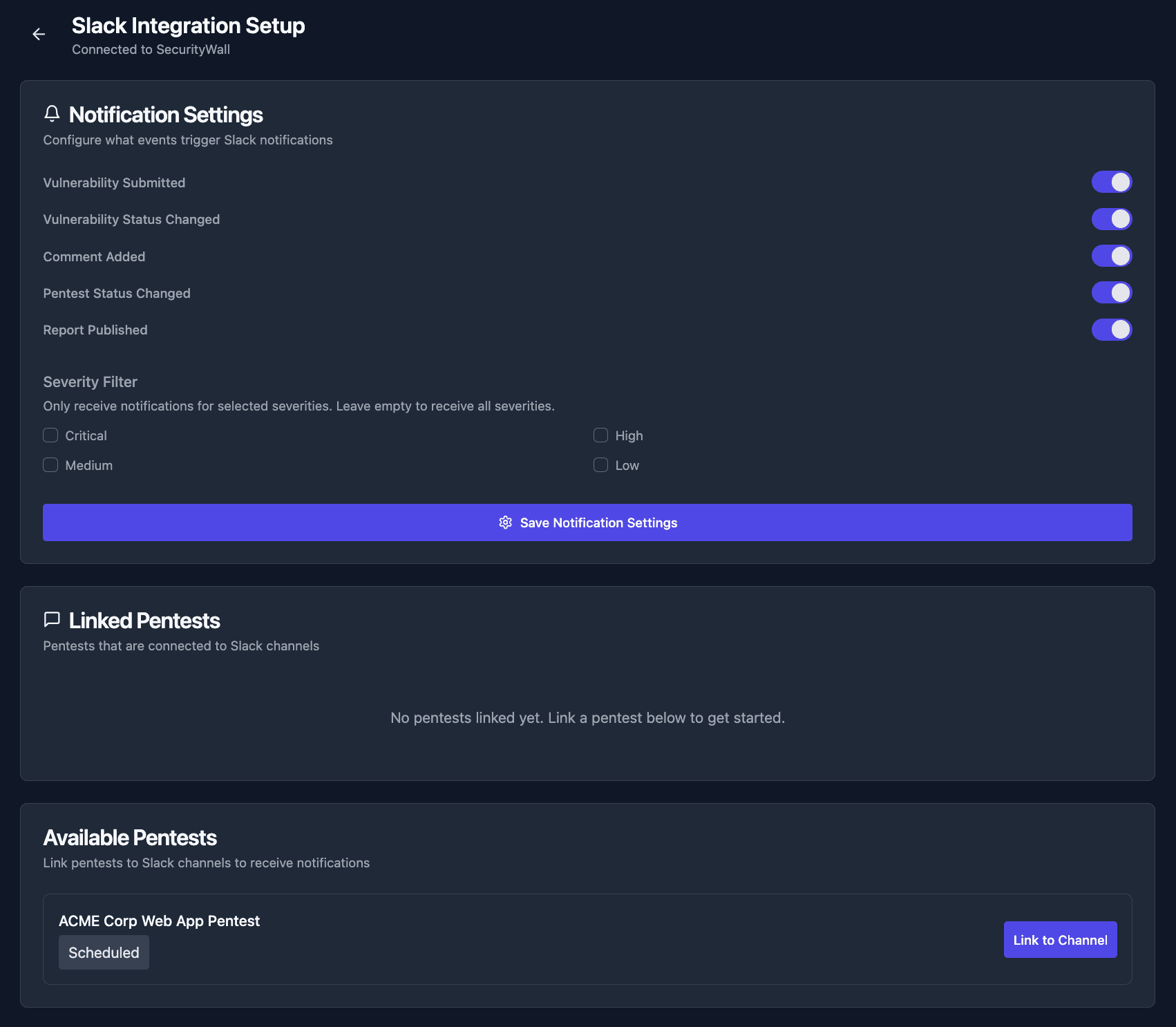
Configuration Page
After authorization, you'll be automatically redirected back to SLASH and the Slack Integration Setup page will open.
This is where you'll configure your notification settings and link pentests to specific Slack channels.
Loading screenshot...
Configure Notification Settings
In the Notification Settings section, toggle on/off the events you want to receive notifications for.
Available events include: Vulnerability Submitted, Vulnerability Status Changed, Comment Added, Pentest Status Changed, and Report Published. You can also filter notifications by severity level (Critical, High, Medium, Low).
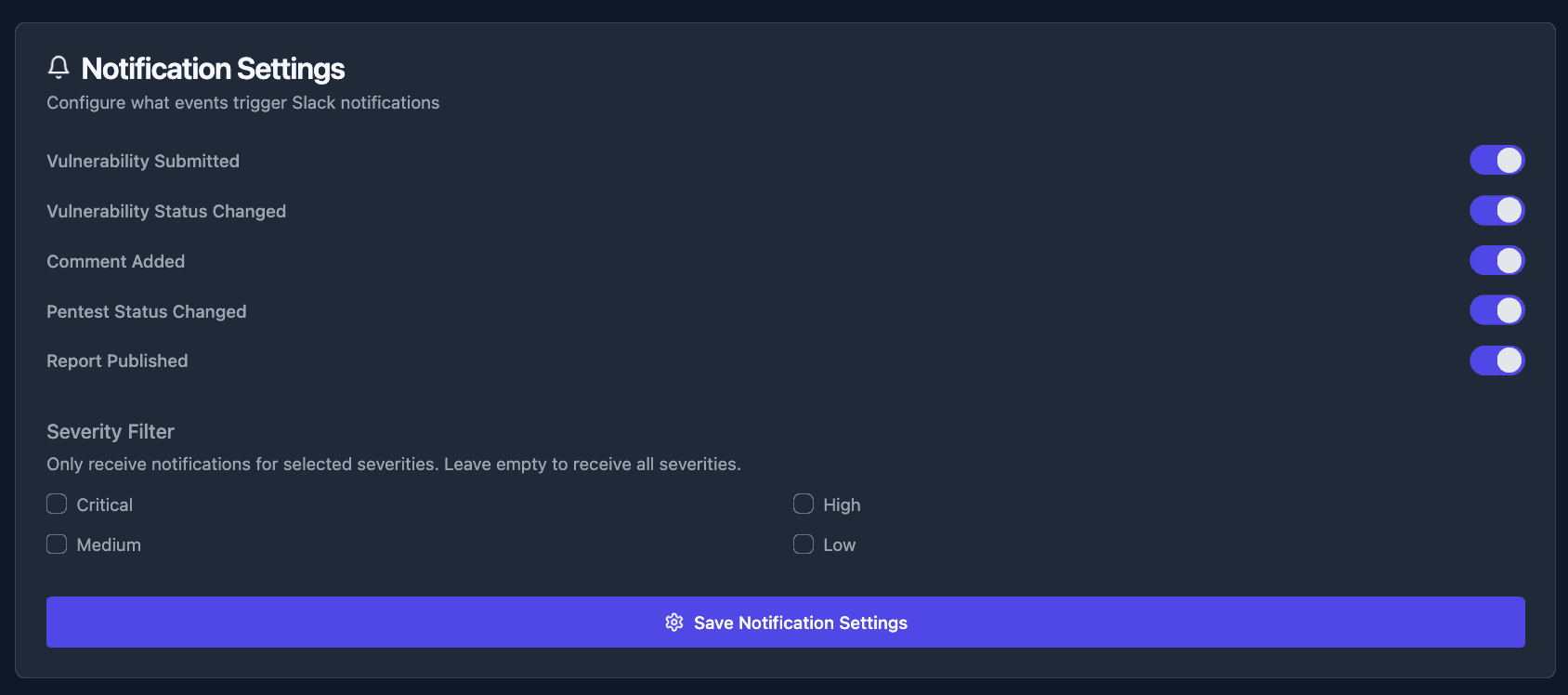
Loading screenshot...
Link Pentests to Channels
In the Available Pentests section, click 'Link to Channel' for each pentest you want to connect to a Slack channel.
You can link different pentests to different channels, allowing you to organize notifications by project or team.
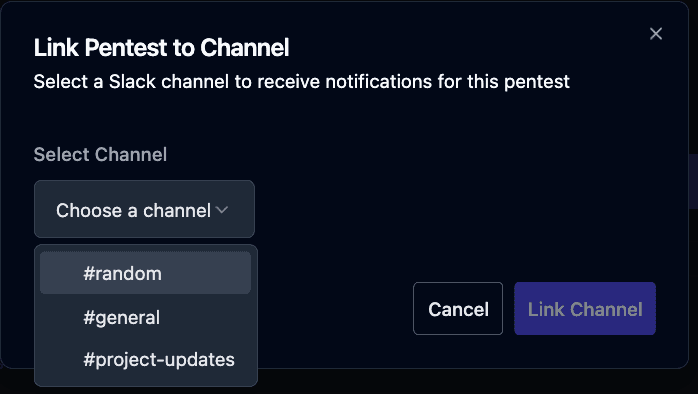
Loading screenshot...
Configuration Options
Notification Settings
Configure what events trigger Slack notifications:
- Vulnerability Submitted
- Vulnerability Status Changed
- Comment Added
- Pentest Status Changed
- Report Published
Severity Filter: You can choose to receive notifications only for selected severities (Critical, High, Medium, Low). Leave all unchecked to receive notifications for all severities.
Linked Pentests
Link pentests to Slack channels to receive notifications:
- Each pentest can be linked to a specific Slack channel
- Different pentests can use different channels
- Link multiple pentests to the same channel if needed
Permissions Required
The SLASH app requires the following permissions to function properly:
Information "SLASH" can view:
- View basic information about public channels in your workspace
- View basic information about private channels that "SLASH" has been added to
- View people in your workspace
- View email addresses of people in your workspace
Actions "SLASH" can take:
- Send messages as @slash
- Start direct messages with people
- Send messages to channels @slash isn't a member of
- Add shortcuts and/or slash commands that people can use